Welcome to 1terabox. Finding a reliable media player can feel overwhelming with so many options available. Tera Video Player stands out as a lightweight, versatile solution designed for smooth video and audio playback on both Windows and Android devices. It combines simplicity with advanced features, making it perfect for casual users who just want to watch videos, as well as enthusiasts who need more control and customization.
Whether you want to watch HD movies, stream online content, or manage subtitles effortlessly, Tera Video Player delivers a seamless experience. In this guide, we’ll walk you through its key features, step-by-step installation instructions, comparisons with popular competitors, and practical tips to help you get the most out of this powerful media player. By the end, you’ll have everything you need to make Tera Video Player your go-to choice for video playback.
What is Tera Video Player?
Tera Video Player is an advanced media player app designed to offer seamless, high-quality video and audio playback across multiple platforms, including Windows PCs and Android devices. Unlike many bulky media players, it is lightweight and optimized for smooth performance, making it suitable for both older systems and high-end devices. It combines an intuitive user interface with advanced functionalities such as subtitle management, customizable playback options, and support for a wide array of media formats, making it ideal for casual viewers, professionals, and media enthusiasts alike.
Overview
Tera Video Player supports nearly all popular video and audio formats, including MP4, MKV, AVI, FLV, MP3, AAC, and more. This broad compatibility means users don’t need to worry about installing additional codecs or encountering playback errors. Beyond format support, it offers features like adjustable playback speed, frame-by-frame navigation, and playlist management, allowing for precise control over media viewing. For streaming enthusiasts, the player supports online content playback, enabling users to watch videos from various sources without switching apps.
In addition to its functional capabilities, Tera Video Player is designed for optimal usability. Its interface is clean, intuitive, and highly customizable, allowing users to tweak themes, toolbars, and layout for a personalized experience. Hardware acceleration and optimized CPU usage ensure smooth performance even for 4K or high-bitrate videos, minimizing lag, stutter, or crashes. This combination of versatility, performance, and user-friendliness makes it a competitive choice among modern video player software.
Developer Information
Tera Video Player is developed by a professional team committed to creating reliable, secure, and continually updated media player software. The developers focus on ensuring the app is compatible with the latest operating systems and hardware configurations, releasing updates that improve functionality, patch bugs, and add new features based on user feedback. Their ongoing support ensures that the player evolves with changing technology trends while maintaining stability and security.
The development team also prioritizes user experience. Features are carefully designed to balance simplicity with advanced functionality, allowing novice users to navigate easily while providing professionals with tools like subtitle synchronization, playlist creation, and playback optimization. This approach has made Tera Video Player a trusted choice for both casual users and tech enthusiasts seeking a dependable, lightweight media player.
Platform Availability
Tera Video Player is available for both Windows PCs and Android devices, ensuring consistent performance across desktops, laptops, and mobile devices. On Windows, it runs smoothly on most modern versions, from Windows 7 to the latest releases, providing a stable environment for both high-definition video and large media libraries. Its low resource usage makes it ideal for older computers or mid-range systems that struggle with heavier media players.
On Android, the app offers a mobile-friendly interface with touch-optimized controls, making video playback, subtitle adjustment, and playlist management effortless on smaller screens. The cross-platform design allows users to enjoy a consistent and familiar experience, whether at home on a desktop or on the go with a smartphone. By combining accessibility, stability, and performance, Tera Video Player stands out as a versatile media player app for any device.
Read Also: terabox video watch
Key Features of Tera Video Player
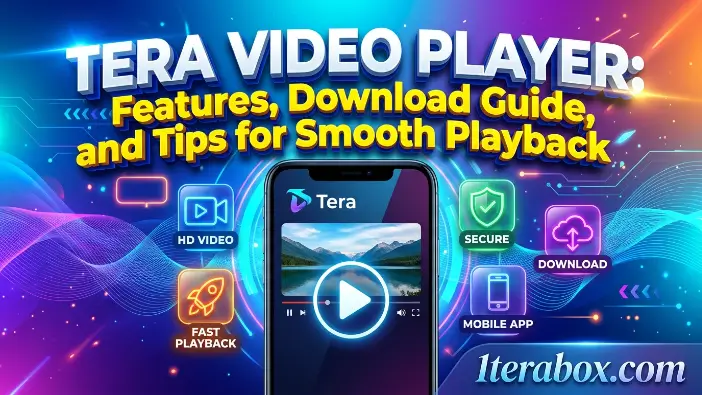
Tera Video Player is a feature-rich media player app designed to provide an all-in-one solution for video and audio playback. It combines versatility, performance, and usability, making it suitable for casual users, movie enthusiasts, and professionals alike. With its advanced features, it allows users to play virtually any media file, enjoy smooth high-definition playback, manage subtitles, and organize media libraries efficiently. These capabilities make Tera Video Player one of the most reliable video player software options available today.
Supported Video Formats
Tera Video Player supports a wide variety of video and audio formats, including MP4, AVI, MKV, FLV, MOV, MP3, AAC, and more. This broad compatibility ensures users can play almost any media file without the need for extra codecs or plugins, which is often a limitation in other video player software. For streaming or downloaded content, users can rely on Tera Video Player to handle nearly every format seamlessly.
Additionally, the app supports both standard and high-bitrate files, making it suitable for both casual videos and professional-grade media. Its ability to read multiple file types reliably allows users to maintain a single player for all their media needs, eliminating the frustration of switching between apps for different formats.
HD and Smooth Playback
One of the standout features of Tera Video Player is its support for high-definition playback, including 1080p and 4K videos. The player uses hardware acceleration and optimized CPU usage to ensure smooth playback, even on mid-range devices or older systems that may struggle with other media players. This ensures that videos play without lag, stutter, or delays, providing a superior viewing experience.
The app also offers customizable playback settings such as frame rate adjustments and buffering optimization. Users can tweak these settings to match their device capabilities, network speed, or file size, ensuring uninterrupted HD performance. This combination of optimization and support for high-resolution formats positions Tera Video Player as a top choice among media player apps.
Subtitle Support and Customization
Tera Video Player provides advanced subtitle support, making it ideal for multilingual users or those who enjoy watching foreign films. It supports common subtitle formats such as SRT, SUB, and ASS, and allows users to load external subtitle files alongside their video content. This ensures accurate synchronization and clear readability.
In addition, the player offers full subtitle customization options. Users can adjust font size, color, background opacity, and positioning on the screen to suit their preferences. This feature is particularly useful for accessibility purposes or when watching on devices with varying screen sizes. By offering comprehensive subtitle control, Tera Video Player enhances the overall viewing experience for a wide range of users.
Playlist and Library Management
Tera Video Player includes a powerful playlist and library management system, making it easy for users to organize their media files efficiently. Users can create playlists for movies, music videos, or TV series and easily manage them for continuous playback without interruptions. This feature is especially helpful for binge-watching sessions or organizing large collections of media files.
The library management system automatically scans and indexes media files stored on the device, categorizing them by type, genre, or folder location. Users can also sort, search, and filter files quickly, providing a seamless way to access content. These organizational tools, combined with the player’s robust performance, make Tera Video Player an exceptional video player software for managing and enjoying media collections.
How to Download and Install Tera Video Player
Installing Tera Video Player is straightforward, making it easy for blog users to start enjoying their favorite media without delay. Whether you are on a Windows PC, a Mac, or a mobile device, the player is designed for seamless installation with minimal system requirements. This guide walks you through each step to ensure a smooth setup process and optimal performance.
Download for Windows / Mac
To install Tera Video Player on a Windows PC or Mac, start by visiting the official website or a trusted software distribution platform. Avoid downloading from unofficial sources to prevent malware or corrupted files. Once on the site, select the correct version for your operating system—Windows 7, 8, 10, or MacOS—and download the installer.
After downloading, run the installer and follow the on-screen prompts. Choose your preferred installation folder and select any optional components such as desktop shortcuts or additional plugins. Once installed, launch the player and allow it to scan your media library. You’re now ready to enjoy a full range of media formats and high-definition playback using Tera Video Player on your desktop.
Download for Android / iOS.
For mobile devices, Tera Video Player is available on the Google Play Store for Android users and on the App Store for iOS users. Open the respective store, search for “Tera Video Player,” and tap Install or Get. Ensure your device meets the minimum operating system requirements for smooth performance.
Once installed, open the app and grant any necessary permissions for file access or streaming. The player will automatically detect media files stored on your device, allowing instant playback. Advanced settings, such as hardware acceleration and subtitle configuration, can also be adjusted for optimal viewing. With this process, users can enjoy the full capabilities of Tera Video Player on mobile devices without complications.
Tips for Optimizing Tera Video Player Performance
While Tera Video Player is designed to run smoothly on most devices, making a few adjustments can significantly enhance playback quality and overall performance. Optimizing settings, enabling hardware acceleration, and managing cache properly can ensure high-definition videos play seamlessly without lag, stutter, or crashes. These tips are useful for both Windows PCs and Android devices, especially when handling large files or streaming content.
Settings Tweaks
Customizing the playback and video settings in Tera Video Player can drastically improve performance. Adjusting parameters such as brightness, contrast, and frame rate can reduce strain on your device while maintaining video quality. Additionally, users can modify the audio output settings and enable features like smooth rendering or enhanced decoding, depending on the type of media being played.
Experimenting with these settings allows you to strike the perfect balance between performance and visual fidelity. For example, lowering frame rates for older hardware or enabling adaptive resolution during streaming can prevent buffering and create a smoother viewing experience. Proper settings tweaks make Tera Video Player more responsive and efficient across all types of devices.
Hardware Acceleration
Enabling hardware acceleration in Tera Video Player offloads video decoding tasks from your CPU to your GPU, which significantly improves playback performance. This is particularly beneficial for high-resolution content such as 1080p or 4K videos, reducing stuttering and overheating on less powerful devices.
Hardware acceleration also helps maintain smooth audio-video synchronization, especially when playing large or high-bitrate files. Users can toggle this feature in the player’s settings and test different acceleration modes to find the one that best matches their device’s specifications. Proper use of hardware acceleration ensures that Tera Video Player runs efficiently and reliably, even on resource-limited systems.
Cache Management
Efficient cache management in Tera Video Player helps speed up media loading and prevents playback interruptions. Clearing unnecessary temporary files and adjusting cache size ensures that the app uses memory optimally without overloading your system.
For streaming content, increasing cache allocation slightly can prevent buffering, while too much cache can slow down other processes. Regular maintenance of cache and temporary files allows Tera Video Player to maintain peak performance, providing a smooth and uninterrupted viewing experience across all supported platforms.
Tera Video Player vs Other Video Players
Tera Video Player is a versatile media player app that balances performance, compatibility, and user-friendliness, making it stand out among other popular video players like VLC, KMPlayer, and MX Player. While these alternatives each have their strengths, Tera Video Player offers a lightweight, cross-platform solution with advanced features such as subtitle customization, smooth HD playback, and efficient playlist management. Its combination of speed, reliability, and feature-rich design makes it ideal for both casual viewers and power users looking for an all-in-one video player software.
Features Comparison
Tera Video Player provides comprehensive features for a seamless viewing experience. It supports a wide range of video and audio formats, including MP4, MKV, AVI, FLV, and MP3, ensuring users can play almost any media file without additional plugins or codecs. Advanced subtitle support allows users to load external files and customize font size, color, and positioning, while its playlist and library management system helps organize large media collections efficiently.
In contrast, VLC Media Player offers broad format compatibility but can be resource-heavy on older systems. KMPlayer supports many formats, but it may overwhelm beginners with complex menus and options. MX Player is optimized for mobile, offering excellent performance on Android but limited functionality on desktop. Overall, Tera Video Player delivers a balanced mix of features, ease-of-use, and versatility that outperforms many alternatives.
Performance and Compatibility
Performance-wise, Tera Video Player is optimized for smooth playback, even with HD and 4K videos, by using hardware acceleration and low CPU usage. This ensures minimal lag or stutter, even on older PCs or mid-range Android devices. The player also supports seamless streaming from online sources, maintaining high-quality playback without interruptions.
Compatibility is another strong point. Tera Video Player works reliably across Windows and Android platforms, providing a consistent experience whether on a desktop or mobile device. By contrast, VLC and KMPlayer are more resource-intensive on desktops, while MX Player is largely mobile-focused. This cross-platform capability, combined with efficient resource usage, positions Tera Video Player as a highly versatile and dependable media player app for a wide range of users.
Common Issues & Troubleshooting
Even the best media player app, like Tera Video Player,r can encounter occasional problems. Users may face crashes, format errors, or subtitle synchronization issues, which can interrupt the viewing experience. Understanding the common causes of these issues and applying step-by-step fixes can help maintain smooth playback and reduce frustration. This guide addresses typical video playback problems and provides practical solutions for a seamless experience.
Crashes
One common issue with Tera Video Player is unexpected crashes during playback. This usually occurs due to outdated graphics drivers, insufficient system resources, or conflicts with other software running in the background. On mobile devices, low memory or app cache corruption can also lead to crashes.
To fix this, start by updating your device’s graphics drivers or system software. Close unnecessary applications while using the player to free up system resources. On Android, clearing the app cache and restarting the device can resolve temporary conflicts. Following these steps will help minimize crashes and improve stability, ensuring uninterrupted video playback.
Format Errors
Another frequent problem is format errors, where the player cannot recognize or play certain media files. This often happens when a file uses an uncommon codec or is corrupted. Even though Tera Video Player supports most formats, rare or damaged files can still trigger media player errors.
To solve this, first check the file’s format and ensure it is supported (e.g., MP4, MKV, AVI, MP3). If the file is corrupted, try playing another copy or converting it to a compatible format using a trusted converter. Additionally, keeping Tera Video Player updated ensures new codecs are supported and reduces the likelihood of playback issues.
Subtitle Sync Issues
Subtitle synchronization issues are common, especially when watching foreign films or downloaded content. These problems occur when the subtitle timing does not match the video, causing text to appear too early or too late. Incorrect frame rates or incompatible subtitle formats can also trigger these video playback problems.
To fix subtitle sync issues, use the player’s built-in subtitle adjustment tools to manually shift the timing forward or backward until it aligns with the audio. Make sure the subtitle file format (SRT, SUB, or ASS) is compatible with the video. For recurring issues, downloading a different subtitle file or converting the video to a standard frame rate can resolve persistent synchronization errors.
Frequently Asked Questions
Is Tera Video Player free to use?
Yes, Tera Video Player is free for personal use, offering full playback features and subtitle support on Windows and Android.
Can it play HD and 4K videos?
Yes, it supports HD and 4K videos with hardware acceleration for smooth, lag-free playback on most devices.
Which devices are compatible with Tera Video Player?
It works on Windows PCs and Android devices, providing a consistent, cross-platform media player app experience.
How do I fix subtitle sync issues?
Use the built-in subtitle timing tools or check for compatible formats (SRT, ASS, SUB) to resolve mismatches.
Is Tera Video Player safe to download?
Yes, downloading from the official website or trusted stores ensures it is secure and free from malware or corrupted files.
Conclusion
Tera Video Player is a lightweight, versatile, and feature-rich media player app that delivers smooth video and audio playback across Windows and Android devices. With support for multiple formats, HD and 4K playback, advanced subtitle customization, and efficient playlist management, it provides a seamless experience for both casual viewers and media enthusiasts.
By following the installation steps, optimizing performance settings, and understanding common troubleshooting tips, users can maximize the potential of Tera Video Player. Its combination of reliability, performance, and cross-platform compatibility makes it a top choice for anyone seeking a dependable and easy-to-use video player software.