
TeraBox has become a popular platform for sharing large files, videos, documents, and photos through simple cloud-based links. Many people use these links daily because they make file sharing fast and convenient. However, beginners often face problems when trying to open Terabox links, especially when the page asks for login details, shows ads, or fails to load properly.
Understanding the correct way to access these links can save time and prevent confusion. You will learn step-by-step methods to open Terabox links on both mobile and desktop devices. You will also discover solutions to common issues so you can download or view shared files easily and safely.
What Is a Terabox Link?
A TeraBox link is an online URL used to share files through cloud storage. Users upload files like videos, photos, documents, or software to Terabox and generate a shareable Terabox link. Anyone with the link can open, view, or download the file using a browser or the Terabox app. This makes sharing large files easier, faster, and more convenient without using device storage.
Understanding Shared Cloud Links
Shared cloud links are special internet URLs that allow people to access files stored on cloud storage platforms like TeraBox. Instead of sending large files directly through email or messaging apps, users upload their files to the cloud and create a shareable link. Anyone who receives the link can open it in a browser or app to view, stream, or download the file. This method is very useful because large files, such as videos, software, photo folders, and PDF documents, are often too big to send normally. Shared cloud links make the sharing process faster, easier, and more convenient for users.
Another important benefit of shared cloud links is accessibility. Since the files are stored online, users can open them anytime from different devices like smartphones, laptops, or desktop computers using an internet connection. Many cloud links also support preview features, allowing users to watch videos or view documents before downloading them. Platforms like TeraBox are popular because they help save device storage space, improve file management, and make sharing large files simple for students, businesses, and regular users.
Why People Use Terabox Links
People use Terabox links because they provide a fast and simple way to share large files online. Many files, such as HD videos, software, photo collections, and backup folders,s are too large to send through messaging apps or email. With TeraBox, users can upload these files to cloud storage and generate a shareable link instead of transferring the actual file directly. Anyone with the link can easily open, view, or download the content using a browser or the Terabox app. This makes file sharing more convenient and saves time.
Another reason people prefer Terabox links is accessibility and storage convenience. Since the files are stored online, users can access them anytime from mobile phones, laptops, or desktop computers with an internet connection. This also helps save storage space on devices because the files remain in the cloud instead of filling phone memory or hard drives. Many users like TeraBox because it supports large file sharing, online previews, backups, and easy access across different devices.
Read Also: terabox watch online
How to Open Terabox Link (Step-by-Step)
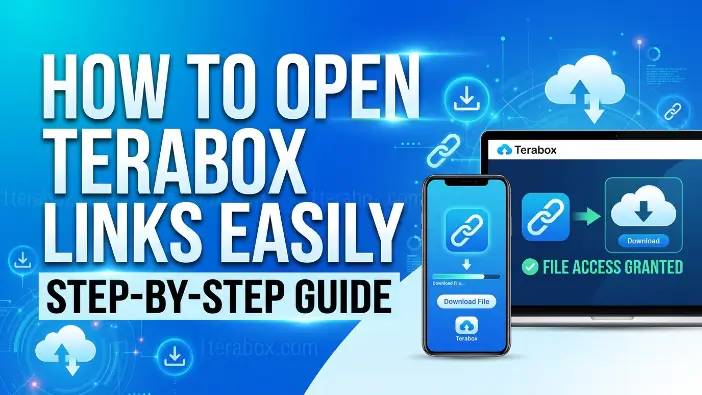
To open a TeraBox link, simply tap or copy the shared Terabox link and open it in a browser like Chrome or Firefox. Wait for the page to load, and if required, log in with your Google, Facebook, or email account. After the file page opens, you can preview, stream, or download the shared content directly to your device. Always avoid fake ads and only click the official download buttons.
Step 1 – Click the Shared Link
The first step to open a TeraBox file is to click the shared TeraBox link you received. These links are usually sent through apps like WhatsApp, Telegram, Facebook Messenger, email, or SMS. When you tap the link on your mobile phone or click it on your computer, it automatically opens in your default web browser, such as Chrome, Firefox, or Microsoft Edge. The browser then starts loading the Terabox file page,e where the shared content is stored online.
If the Terabox link does not open automatically, you can copy the link manually and paste it into your browser’s address bar. After pressing Enter, wait a few seconds for the page to load completely because large files or slow internet connections may take extra time. Make sure you are connected to a stable internet connection for smooth loading. If extra ads or pop-ups appear, close them carefully and return to the original Terabox page to continue opening the shared file safely.
Step 2 – Open in App or Browser
After clicking the shared Terabox link, the file will usually open either in your web browser or directly inside the TeraBox app if it is installed on your device. On mobile phones, the browser may ask whether you want to continue in Chrome, Safari, or the Terabox app. You can choose either option depending on your preference. Opening the file in the app may provide a smoother experience, while browsers are useful if you do not want to install anything.
If the page opens in a browser, wait for the Terabox file page to load completely. You may see options like Preview, Play, or Download depending on the type of shared file. Some large videos or documents can even be viewed online without downloading them first. If the app or browser asks for login access, simply sign in using your Google account, Facebook account, or email to continue accessing the shared content safely.
Step 3 – Login or Continue as Guest
After the TeraBox page opens, you may be asked to log in before accessing the shared file. Some Terabox links require users to sign in for security or download permissions, while others allow direct access without creating an account. If login is required, you can quickly sign in using your Google account, Facebook account, Apple ID, or email address. The process usually takes only a few seconds.
If the file owner allows guest access, you can continue without logging in and directly preview or download the file. This option is helpful for users who only want quick access without creating a Terabox account. However, logging in may unlock extra features like faster downloads, file saving, and better streaming options. Always make sure you are using the official TeraBox website or app when entering your account information for safety and security.
Step 4 – Access Files or Folders
After you log in or continue as a guest, the Terabox link will take you to the main file page inside TeraBox. Here you will see the shared content, which may include a single file or multiple folders. The files are usually shown with names, sizes, and sometimes preview options like play or open.
Now you can simply tap on the file or folder to open it. If it is a video, you may see a play option to watch it online. If it is a document or image, you can preview it before downloading. For large files, you will also find a download button to save the content on your device. Make sure you select only the correct file and avoid clicking on any ads or pop-ups, so you can safely access the shared content without confusion.
Open Terabox Link on Mobile vs Desktop
Opening a TeraBox link on mobile and desktop is easy but slightly different. On mobile, you just tap the Terabox link, and it opens in the app or browser, making it quick and convenient for viewing or downloading files anytime, but it may show ads or feel slow on small screens. Guide on a desktop, the link opens in browsers like Chrome or Firefox on a larger screen, which makes it easier to view files, manage folders, and download large files smoothly with better speed and stability. In short, mobile is best for quick access, while desktop is better for handling large files and a smoother experience.
Mobile App Method
To open a TeraBox link using the mobile app, first make sure the Terabox app is installed on your phone. When you receive a Terabox link, simply tap on it and choose to open it in the Terabox app instead of the browser. If the app is not installed, download it from the official app store, then open the link again.
Once the link opens in the app, you may need to log in with your Google, Facebook, or email account. After that, the shared file or folder will appear on your screen. You can easily preview videos, view documents, or download files directly to your mobile storage. The app method is usually faster, more stable, and gives a smoother experience compared to using a browser.
Browser Method
To open a TeraBox link using a browser, simply tap or copy the TeraBox link and open it in a web browser like Chrome, Firefox, or Safari. blog, the link will take you to the Terabox website, where the shared file is stored. Wait a few seconds for the page to load completely, especially if the file is large or your internet is slow.
After the page opens, you may need to log in using your Google, Facebook, or email account if required. Once inside, you can view, preview, or download the file directly from the browser. The browser method is useful because it does not require installing an app, but sometimes it may show ads or load more slowly compared to the mobile app.
Which One Works Better?
Both the mobile app and browser methods work well for opening a TeraBox link, but the better option depends on your needs. The mobile app is usually the best choice because it is faster, more stable, and gives a smoother experience. It also makes downloading and viewing files easier, with fewer loading issues and better performance for large files.
On the other hand, the browser method is useful if you don’t want to install any app or if you are using a shared device. It still allows you to open, view, and download files, but it may feel slower and show more ads. In simple words, the app works better for regular use, while the browser is good for quick or occasional access.
Common Problems When Opening Terabox Links
When opening a TeraBox link, users may face a few common issues, such as the link not opening, slow loading, login requests, ads, or download problems. These usually happen because of weak internet, browser errors, or large file size. If the Terabox link does not work, you can refresh the page, check your internet, or try another browser like Chrome. If the page is slow or blank, switching to Wi-Fi or waiting a few seconds can help. Some links ask for a login, which is normal, and you can sign in with Google or email. You may also see ads or pop-ups, so always close them carefully and only click official Terabox buttons. Overall, these problems are simple and can be easily fixed.
Link Not Working or Broken
Sometimes a TeraBox link does not open or shows an error. This is called a broken or non-working Terabox link. It usually happens when the file has been deleted by the owner, the link has expired, or the internet connection is weak. In some cases, the browser may also fail to load the page properly, making it look like the link is broken.
To fix this problem, first check your internet connection and refresh the page. If it still does not work, try opening the Terabox link in another browser like Chrome or Firefox. You can also copy and paste the link again or ask the sender for a new working link. Most of the time, the issue is simple and can be solved quickly with these basic steps.
Expired Terabox Link
An expired Terabox link happens when a shared link from TeraBox is no longer active or has passed its valid time limit. This means the file can no longer be opened, viewed, or downloaded using that link. It usually occurs when the file owner deletes the file, changes sharing settings, or the link is automatically disabled for security reasons.
When a Terabox link expires, you will see errors like “file not found” or “link no longer available.” In this situation, you cannot fix it from your side. The only solution is to contact the person who shared the link and ask them to create and send a new working link. This is a common issue in cloud sharing, and it simply means the file is no longer accessible through the old link.
Login Required Issues
When you open a TeraBox link, sometimes the file does not open directly and shows a message asking you to log in first. This is called a login required issue. It happens because the file owner has made the content private or protected, so only users who sign in can access it. This is done for security and to control who can view or download the file.
To solve this problem, you need to sign in using your Google account, Facebook account, or email. After logging in, open the Terabox link again, and the file will appear normally. If you do not have an account, you can quickly create one for free. If it still does not work, you can refresh the page or use the Terabox app for a smoother experience.
Region or Network Restrictions
In some situations, a TeraBox link may not open properly because of regional restrictions or a weak internet connection. This means your network or country settings, or even your Wi-Fi firewall, may block the page from loading. As a result, the Terabox link may load very slowly, stop halfway, or not open at all.
To fix this issue, you should first check your internet connection and try switching to a stronger network. Using mobile data instead of Wi-Fi, or trying a different Wi-Fi connection, often solves the problem. If the issue still continues, you can use the official Terabox app, which usually works better in restricted or slow network areas and gives a smoother experience for opening and viewing files.
How to Fix the Terabox Link Not Opening
Sometimes TeraBox links do not open because of browser errors, weak internet, or cached data problems. These issues can stop the Terabox link from loading properly and may show a blank page or slow loading. This is common and easy to fix. You can refresh the page, clear browser cache, restart your browser, or switch to a better internet connection. In most cases, these simple steps quickly solve the problem and help you open and access files without any delay.
Clear Browser Cache
Sometimes, TeraBox links do not open properly because of browser cache issues. A cache is a small storage in your browser that saves temporary files like images, data, and page information to make websites load faster. Over time, this stored data can become old or corrupted, and instead of helping, it starts causing problems. When you try to open a Terabox link, this bad cache data can block the page from loading, showing blank screens, slow loading, or error messages.
To fix this problem, you need to clear your browser cache and cookies from the settings. After clearing it, restart your browser and open the Terabox link again. Now the browser will load fresh and updated data instead of old files, which removes conflicts and fixes loading errors. This simple step often solves most opening issues and makes the Terabox page work smoothly again without delays or problems.
Try Another Browser
Sometimes TeraBox links do not open properly because the problem is not the link itself, but the browser you are using. Some browsers may not fully support Terabox features, so the page may freeze, load very slowly, or show errors while opening shared files or folders. This happens because different browsers handle web pages in different ways, and not all browsers are fully compatible with every cloud storage system.
To fix this issue, you can simply switch to another browser like Google Chrome, Mozilla Firefox, or Microsoft Edge. When you change the browser, the same Terabox link may start working normally because a different browser can better support the page. This easy step helps solve compatibility problems and gives you a smoother, faster, and error-free experience when accessing Terabox links.
Use Official App
The official TeraBox app is designed to give users a much smoother and more reliable experience than using a browser. When you open a Terabox link in the app, it loads faster because the app is built specifically for handling cloud storage files like videos, documents, and large folders. This reduces common problems such as slow loading, page freezing, or error messages that often happen in browsers. The app also manages data more efficiently, so even large files open without interruptions.
Another big advantage of the app is better stability and file control. It allows users to easily preview, download, and organise files in one place without switching between tabs or dealing with pop-ups and ads. This makes it especially useful for people who frequently use Terabox links on mobile devices. Overall, the app provides a faster, safer, and more convenient way to access and manage files compared to browsers.
Check Internet Connection
A weak or unstable internet connection is one of the most common reasons why TeraBox links do not open properly. When your internet is slow, the Terabox link cannot load all the file data from the cloud server. Because of this, the page may stop loading halfway, show a blank screen, or display error messages. Sometimes videos keep buffering, files take too long to appear, or the page keeps refreshing again and again. This happens because a weak network cannot handle large cloud files properly.
To fix this problem, you need a strong and stable internet connection. You can switch from mobile data to Wi-Fi, move closer to the router, or restart your internet device. If one network is not working well, try another network. A stable connection helps Terabox links load faster, open smoothly, and show files without errors or delays. With good internet, you can easily view, stream, and download files from TeraBox without any interruption.
What to Do After Opening a Terabox Link
After opening a TeraBox link, you can see all the shared files, like videos, photos, documents, or folders,s on your screen. From here, the Terabox link allows you to choose what you want to do with the file. You can preview it online to check if it is the correct file, stream videos without downloading, or download it to your device for offline use. You can also save the file to your Terabox account so you can access it later anytime from any device. This step is very useful because it helps you manage files in a simple way and avoids confusion or mistakes. It also saves your phone storage and gives you full control over how you use and organize files from TeraBox.
View or Preview Files
After opening a TeraBox link, the first option you usually get is a file preview. This means you can open and view files directly on the platform without downloading them. With the Terabox link, you can watch videos, read documents, or view images instantly in your browser or app. This is very helpful because it saves your phone or computer storage and also saves time, especially when the file is large.
Previewing is also useful because it lets you check the file before downloading it. This way, you can make sure it is the correct file and avoid wasting data or storage on unwanted downloads. It is especially helpful for users who only need to view the file once or for a short time. Overall, this feature makes TeraBox very convenient for quick access to shared content without permanent downloading.
Download Files Safely
If you need to use files without internet, you can download them from a TeraBox link directly to your phone or computer. When you open the Terabox link, you will see a download button. Just click it, and the file will start saving on your device. It is very important to keep your internet connection strong and stable because if the internet stops in the middle, the download may fail or the file may become incomplete. Large files can also take more time, so you should wait until the process is fully finished.
At the same time, you should always be careful while downloading files. Only download from trusted Terabox links because unknown or fake links can sometimes contain harmful or unsafe content. Safe downloading protects your device from viruses and keeps your personal data secure. It also ensures that your important files are properly saved, so you can use them at any time in the future without any problems.
Save to Cloud Storage
TeraBox also allows users to save files directly to their cloud account instead of downloading them. When you open a Terabox link, you may see an option like “Save to Cloud” or “Save to My Drive.” This means the file will stay online inside your Terabox account, and you don’t need to store it on your phone or computer. It is very useful for large files because it saves device storage and keeps everything organised in one place.
This feature is helpful because you can access your saved files anytime from any device by simply logging into your account. It also makes file management easier since you can store, organise, and open files whenever needed without downloading them again. Overall, saving files to the cloud keeps your data safe, saves space, and makes Terabox links more convenient for long-term use.
Tips for Smooth Terabox Access
Using TeraBox smoothly is simple if you follow a few basic habits. Always use a strong and stable internet connection because a weak internet connection can make Terabox links slow or fail to open. Keep your app or browser updated so it runs properly and avoids errors or loading issues. Also, use safe browsing by opening only trusted links and avoiding unknown sources. These small steps help improve speed, security, and performance, allowing you to open, view, and download files from TeraBox easily without interruptions or problems.
Use a stable Internet.
A stable internet connection is very important when using TeraBox because all files in the Terabox links are stored online in the cloud. If your internet is weak or unstable, the page cannot load the file data properly. This can cause problems like slow loading, buffering, blank screens, or even complete failure to open the link. It happens because the browser or app cannot receive all the information from the cloud server at the right speed.
To solve this, you should always use a strong and stable connection, like good Wi-Fi or reliable mobile data. A fast internet connection helps Terabox links open quickly, load files smoothly, and work without interruptions. It also makes downloading, streaming, and previewing files much faster and easier. With a stable network, you can use TeraBox without delays, errors, or loading problems, and manage your files more efficiently.
Keep App Updated
Keeping the TeraBox app updated is very important for smooth and error-free use. When you use an old version of the app, it may not support new features, and Terabox links can load slowly, freeze, or show errors. This happens because older versions are not fully compatible with updated cloud systems, which can make file access unstable on mobile phones or tablets.
When you update the app regularly, it fixes bugs and improves overall performance. Updates also make the app faster, more secure, and more compatible with different devices. A new version helps Terabox links open quickly and smoothly without interruptions. In simple words, an updated app gives you better speed, fewer problems, and a more reliable experience when using TeraBox for storing and sharing files.
Avoid Suspicious Links
Avoiding suspicious TeraBox links is very important for your safety and a smooth experience. Sometimes Terabox links are shared from unknown or untrusted sources, and these links may lead to fake pages, broken files, or unsafe content. They can also cause loading errors or slow performance, and in some cases, they may risk your device’s privacy or security.
To stay safe, always open Terabox links only from trusted people or known senders. If a link looks strange or suspicious, it is better not to open it. By following this simple habit, you can protect your device and avoid problems like errors, interruptions, or security risks. This ensures a smooth and safe experience while using TeraBox for file sharing and access.
Frequently Asked Questions
Why is my Terabox link not opening?
It may be broken, expired, or affected by weak internet or browser issues. Check the link and try again with a stable connection.
Do I need an account to open Terabox links?
Not always; some links open as a guest, but others require a login for full access and downloads.
Can I open Terabox links without the app?
Yes, you can use a browser, but the app gives faster and smoother performance.
Are Terabox links safe to use?
They are safe if shared from trusted sources, but avoid unknown or suspicious links.
What should I do if the link has expired?
Expired links cannot be opened again; you must request a new link from the sender.
Conclusion
Opening TeraBox links is easy once you understand the basic steps and common problems. When you receive a Terabox link, you just need to click it, open it in a browser or app, and wait for the page to load. If required, you may need to log in before you can access the file. After that, you can simply choose to preview, stream, or download the shared content.
To avoid problems, you should also follow simple fixes like checking your internet connection, updating the Terabox app, and avoiding broken or suspicious links. These small steps help prevent errors and make the experience smoother. In the end, Terabox links make cloud file sharing very simple, fast, and convenient for everyday use when handled correctly.